Download BMS
Get BMS on the device in front of you.
Install on Android today. The Windows client is in preview while the installer is finished. Same calm interface, same local-first data model.
Showing the last known release. The release service could not be reached.Version v1.2.0
BMS for Android
Direct APK · signed release
The complete offline app for one counter. Sales, stock, customer credit, purchases, routes and reports — installed directly, no account needed.
- Version
- v1.2.0
- Size
- 80.0 MB
- Updated
- 26 Oct 2026
Android 7.0 or newer. About 100 MB of free storage recommended.
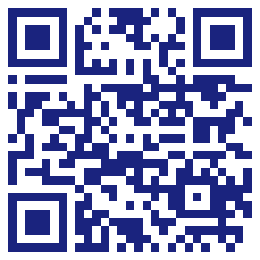
Scan with your phone
Open the camera, scan, and install. The QR always resolves to the current Android release.
BMS-Mobile-v1.2.0.apk
Installing a direct APK is normal outside the Play Store. Download only from this site or the official GitHub release page.
BMS for Windows
Desktop client · preview build
The desktop client is being finished. It uses the same local database as BMS Mobile, so the aim is a familiar screen and a business you can move between devices.
- Status
- Preview
- Installer
- In progress
- Data
- Local
No Windows installer has been published yet. This button becomes the download when one is.
What “preview” means
The desktop app runs, but the installer, signing and Windows-specific testing are still being completed. It will be announced on the release page when ready.
Before you install
What the app needs.
Modest requirements by design. BMS is built for the phone already in your pocket, not the newest one on the shelf.
Android requirements
- Android version
- 7.0 (API 24) or newer
- Memory
- 2 GB minimum · 3 GB recommended
- Free storage
- About 100 MB, plus room for backups and exports
- Camera
- Optional — only for barcode and QR scanning
- Google Maps
- Optional — only for map pins and route hand-off
- Internet
- Not required for any business feature
Windows requirements
Preview- Windows version
- Windows 10 or 11, 64-bit
- Runtime
- WebView2 Runtime (included with the installer)
- Memory
- 2 GB or more
- Display
- 1280 × 720 or larger
- Internet
- Not required at runtime
- Status
- Preview build — installer coming soon
From download to first sale
Four small steps. No setup project.
BMS is used by one person at a time, so first-run stays short. Most of the work is adding what you sell.
- 01
Download the APK
Tap the Android download button on this page, or scan the QR code with the phone you will use at the counter.
- 02
Allow the install
Android may ask you to allow installs from your browser or file manager. This is normal for apps distributed outside the Play Store.
- 03
Create the business
Open BMS and enter the business name, an administrator username and a password. No email or activation code.
- 04
Add, sell, back up
Add items or receive a purchase order, record your first sale, then create a .bmsbackup copy and keep it somewhere safe.
Set up the shop
On first launch, create the business profile and the first administrator. No account, email or activation code.
Add what you sell
Add items, units and opening stock, or receive a purchase order. Barcode scanning is optional.
Run the day
Sell, collect, restock and deliver. The dashboard keeps today’s numbers and alerts in one place.
Verify the file
Check what you downloaded.
Every release publishes a SHA-256 checksum. If it does not match, do not install the file — download again from this page or the official release.
- File
- BMS-Mobile-v1.2.0.apk
- Version
- v1.2.0
- Size
- 80.0 MB
- SHA-256
b6fb49506d071359412951247b971e1e340acc5d5bdfedde9fa5757ce5a1660c
How to check the checksum
On Windows, open PowerShell in the download folder and run:
Get-FileHash .\BMS-Mobile-v1.2.0.apk -Algorithm SHA256Compare the result with the value above. On Android, a checksum utility from your file manager or app store can calculate the same hash.
Your data stays on the device
BMS does not need an account or a server. Your working database is local. Protect the phone with a screen lock and keep a current backup.
Backups and transferMoving from another phone?
Create a .bmsbackup file on the old device, then restore it on the new one. The transfer file is encrypted and does not include app-lock settings.
Read the transfer guideInstall not working?
Check the storage space and Android version, then try downloading again. If it still fails, open an issue with the error message.
Older versions and release notes
Every published build is listed with its notes and checksums.